Now Playing Panel
The Now Playing panel allows visitors to see every film and showtime that’s scheduled on a given date. The panel populates automatically, and draws film and showtime information from the Scheduler. It typically gets used at the top of the home page.
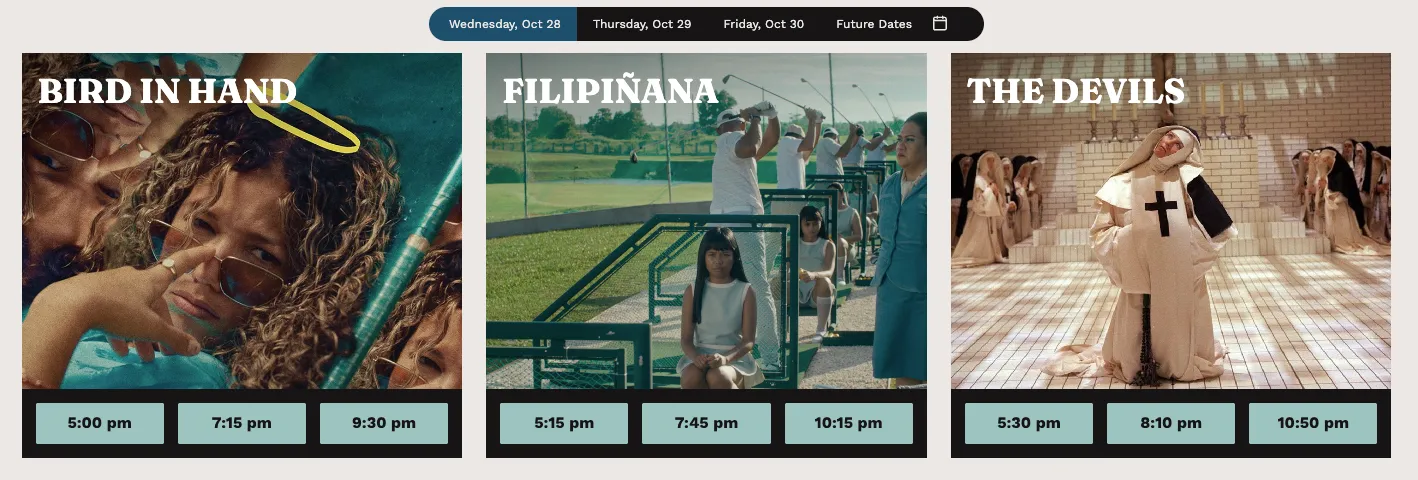
A date bar spans the top of the panel and lists today’s date followed by the next two calendar days. A fourth option allows visitors to select a future date from a pop-up calendar. Today’s date displays by default.
If no showtimes are scheduled for the day, an automated message directs visitors to the next date with an open showtime.
Appearance
Films appear as rows of images, either posters or film stills. Beneath each film, a checkout button for each showtime links visitors to seat selection (if applicable) or checkout. The films populate chronologically based on the earliest scheduled showtime.
When visitors hover over an image, the film’s Excerpt appears, along with a "See Details" icon that links to the Film Page. If a trailer is attached, a "Watch Trailer" icon also appears and opens the trailer in a pop-up window.
Images scale automatically depending on the number of films scheduled for the day. A maximum of three (3) films appear on each row. If applicable, the Film Series pill appears on the bottom right corner of the image and links to the appropriate Film Series page
Adding the panel
Using the Flexible Template page template, select "Add Panel." From the dropdown menu, select "Now Playing Panel."
Settings
When editing your page, the Now Playing Panel displays style settings where you choose the image type and set colors.
Image Type
Select from two options for what Image Type will populate in the panel. If a Film Page does not have the selected image attached, a blank box appears in its place.
- Stills (Landscape)
- This mode displays the Production Still attached to the Film Page.
- A text overlay displays the film’s title.
- If the film has a showtime with an extra attached, that showtime appears beneath the title followed by the Shortened Extra description.
- Note: Only use Production Stills that are free of text and busy design elements, which can affect the readability of the overlaid text.
- Posters (Portrait)
- This mode displays the Poster that’s attached to the Film Page, which can be helpful if screening many shows daily.
- A text overlay of the title does not appear in this mode.
- If the film has a showtime with an extra attached, that showtime appears at the top of the image followed by the Shortened Extra description.
Color Options
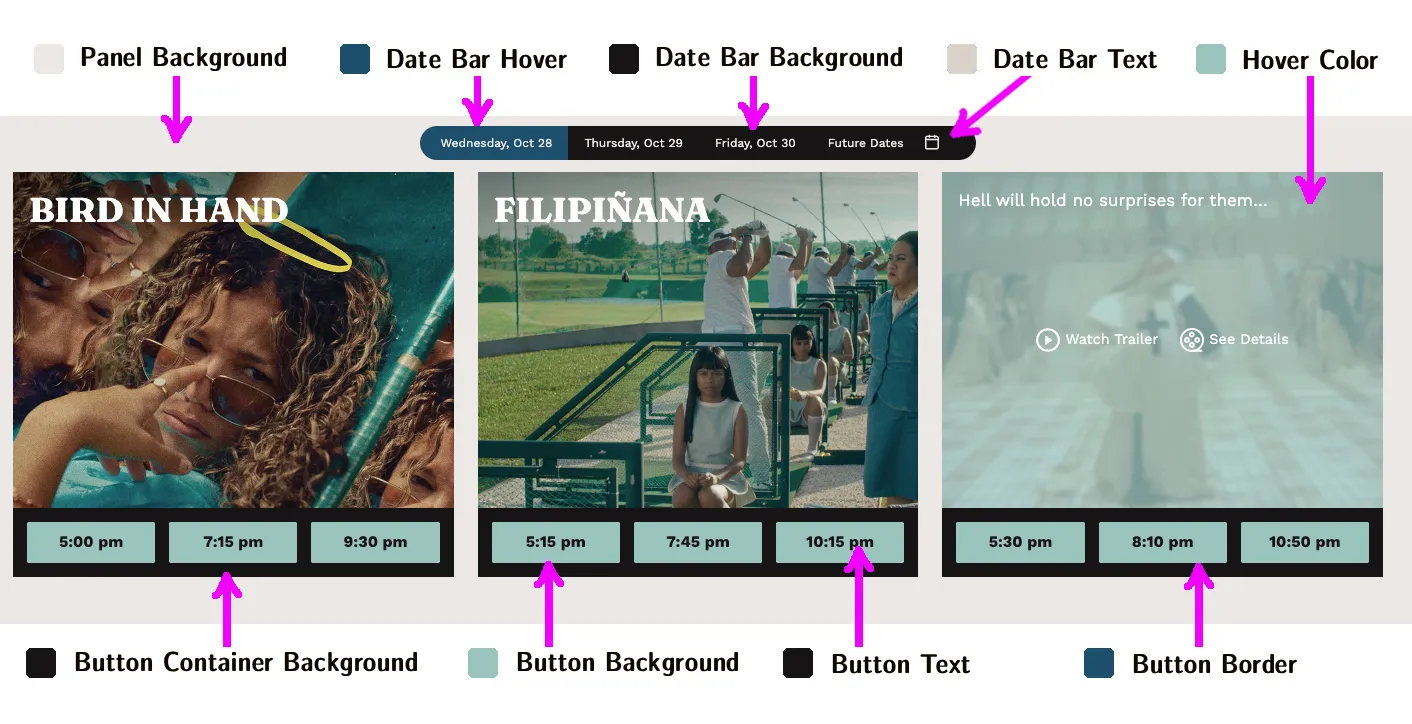
Panel Background Color | The primary color that appears behind the panel. Note: This color’s lightness value determines what color gets used for the date text in the calendar pop-up. If lower than 40%, dates will appear white; if higher, black. |
|---|---|
Date Bar Background Color | The background of the date bar that runs along the top of the panel. |
Date Bar Selected Date Background Color | The highlight color for the selected date. |
Date Bar Text Color | The text color of the dates inside the date bar. |
Show Hover Color | The overlay color that appears when a user hovers over a film image. |
Button Container Background Color | The background of the area that contains each film's row of showtime buttons. |
Background Color | The fill color for each showtime button. |
Button Text Color | The text color of the time within each showtime button. |
Button Border Color | The outline around each showtime button. |