Ticket Scanner Setup & Functionality
Download and Install
The Filmbot scanner app is available to download for free and is compatible with iOS, iPadOS and Android devices with rear-facing cameras and an internet connection:
After you download the app, contact the Filmbot team for configuration settings specific to the cinema that must be entered for the scanner app to perform properly.
Initial Settings
The first time you open the app, you will need to enter the API URL and API Key into the settings. These are typically provided via email during your onboarding. If you need them sent again, email [email protected] and we are happy to resend them.
The same API URL and API Key can be shared across all scanning devices in your organization. Scans are not associated with specific staff members.
Custom Options
In your admin, navigate to Settings > Theater Setup > Ticketing > QR Codes and Scanning, to enable the functionality and customize the feature.
Field name | Field description |
|---|---|
Enable Ticket Scanning? | Enables ticket scanning functionality for your theater. |
Enable QR Codes in Order Confirmation Emails? | Enable to include QR codes in confirmation emails. |
Enable QR Codes on Printed Tickets? | Enable to add QR codes to printed tickets. |
Limit ticket scanning to a time window around showtime start | Enable this to reveal customization options related to restricting when tickets can be scanned. |
Scan window opens (minutes before showtime start) | The value in this field determines when tickets can be scanned before a showtime starts. |
Scan window closes (minutes after showtime start) | The value in this field determines when tickets can be scanned after a showtime starts. |
Apply time window settings to the Box Office app | If enabled, the values in the "Scan window opens" and "Scan window closes" fields will also apply to the Box Office app. When disabled, tickets can be scanned from the Box Office app any time. |
How to Scan Tickets
Which QR Codes to Scan
Customers will receive a QR code in their email confirmation, or if staff prints their tickets at the box office. Both of these QR codes can be scanned by the Filmbot Ticket Scanner app.
If the customer has purchased tickets to multiple showtimes in one order, and they are presenting an email, they will have one QR code for each showtime in their order. Ensure you are scanning the QR code for the correct showtime (the showtime will appear below the QR code).
Each QR code can be scanned repeatedly for each ticket to that showtime in the order. This makes it easy for members of the same party to share QR codes by email forwarding, in case they need to arrive separately.
How to Aim the Scanner
When a customer presents the QR code, point the scanner app towards the QR code so that the code is within the green square outline onscreen. You may need to zoom in on their phone screen. As soon as the app recognizes the code, it will automatically submit the code for validation.
You will need to scan the QR code once for each person in the party who is arriving and has a ticket in that order. If the QR codes are coming from printed tickets, you can scan each ticket separately or one person in the party's ticket repeatedly; the QR codes are identical for all tickets to a specific showtime in the same order.
Scan Responses
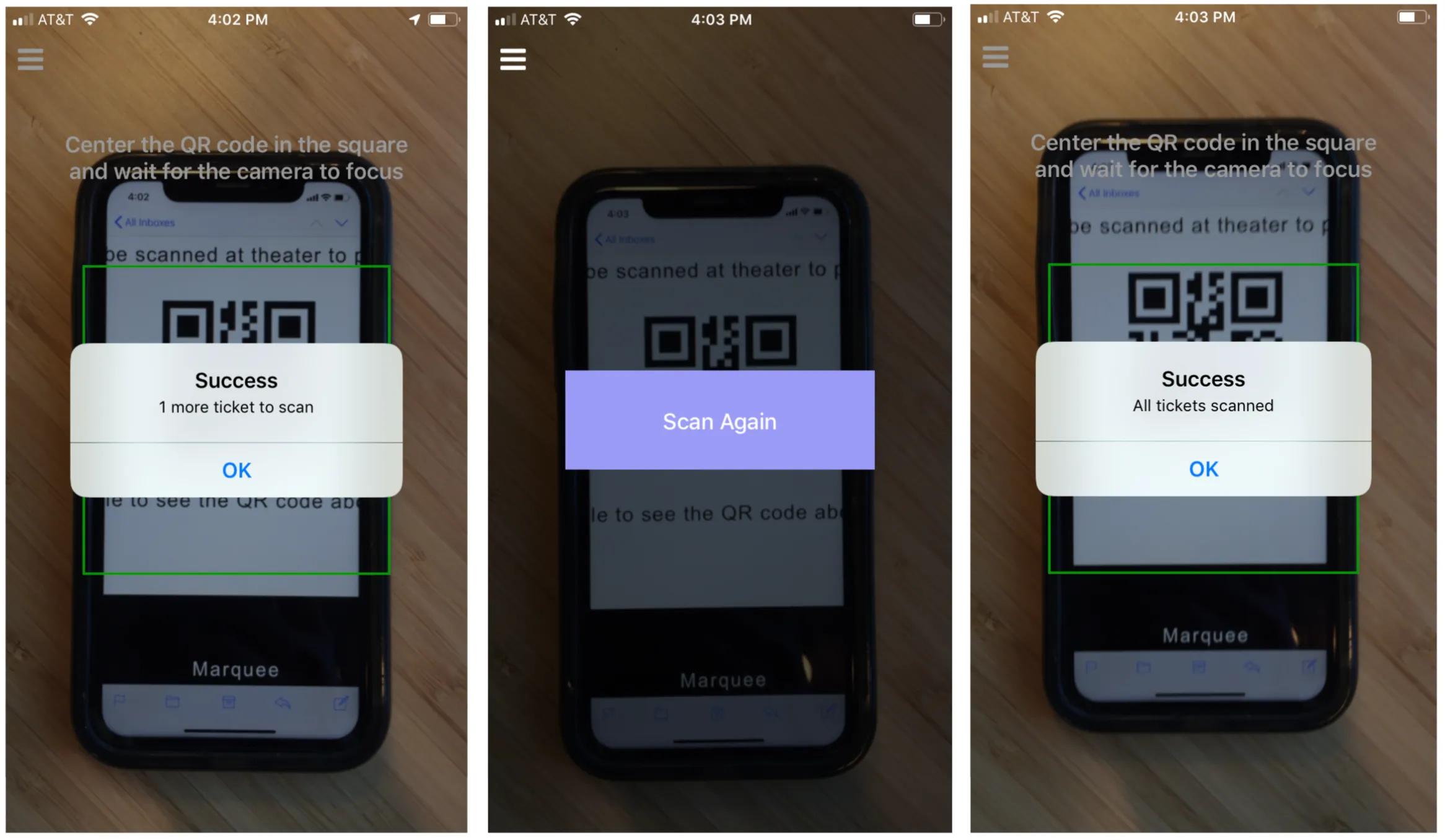
A “Success” message will appear once the QR code is successfully scanned. If multiple tickets have been purchased for that showtime, the QR code will need to be scanned again for every individual ticket, until all tickets have been scanned.
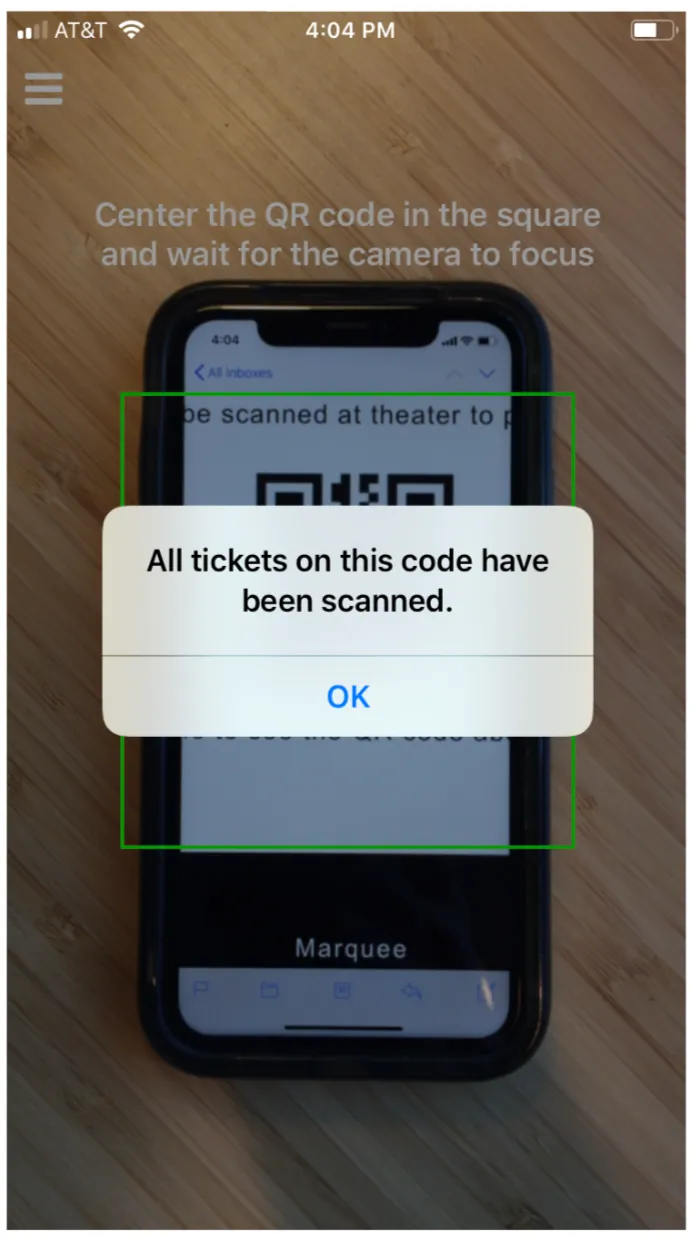
If all of the tickets for a QR code have been scanned already, the message in the app will not display a success message. If you see the message "All tickets on this code have been scanned", it means that the customer's tickets were already scanned previously:
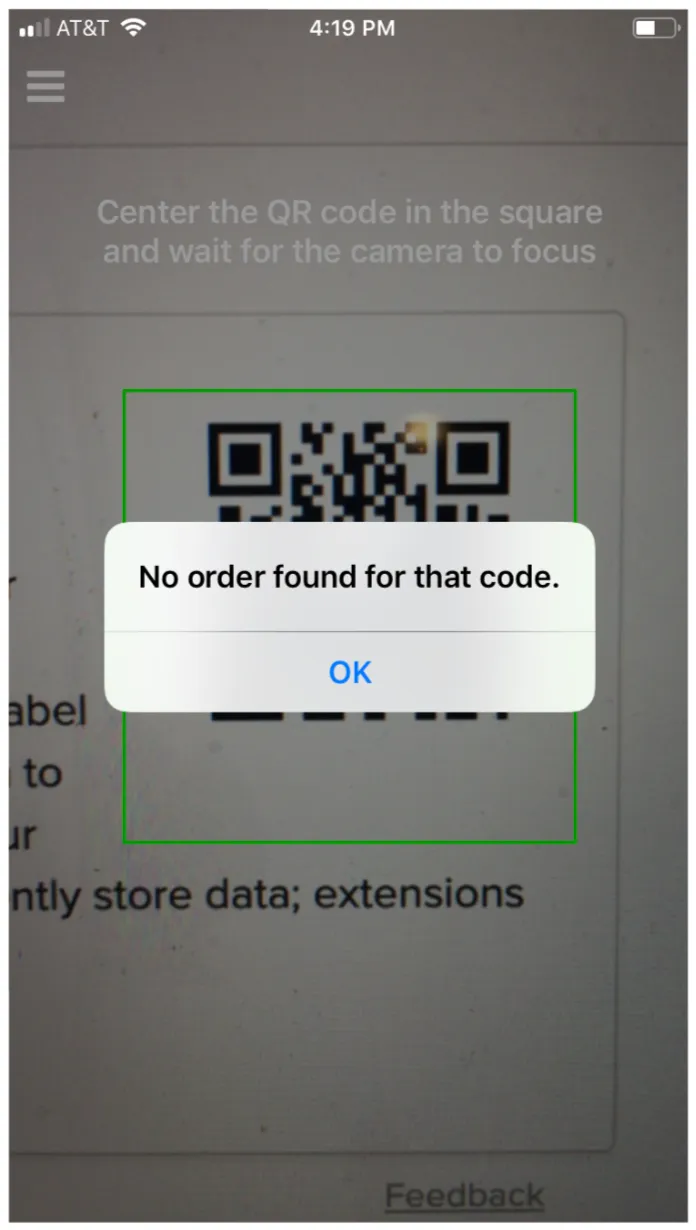
If a QR code is provided that is not associated with a ticket order, an alert will appear that no order is found for that code:
Tracking Scan Counts in the Box Office App
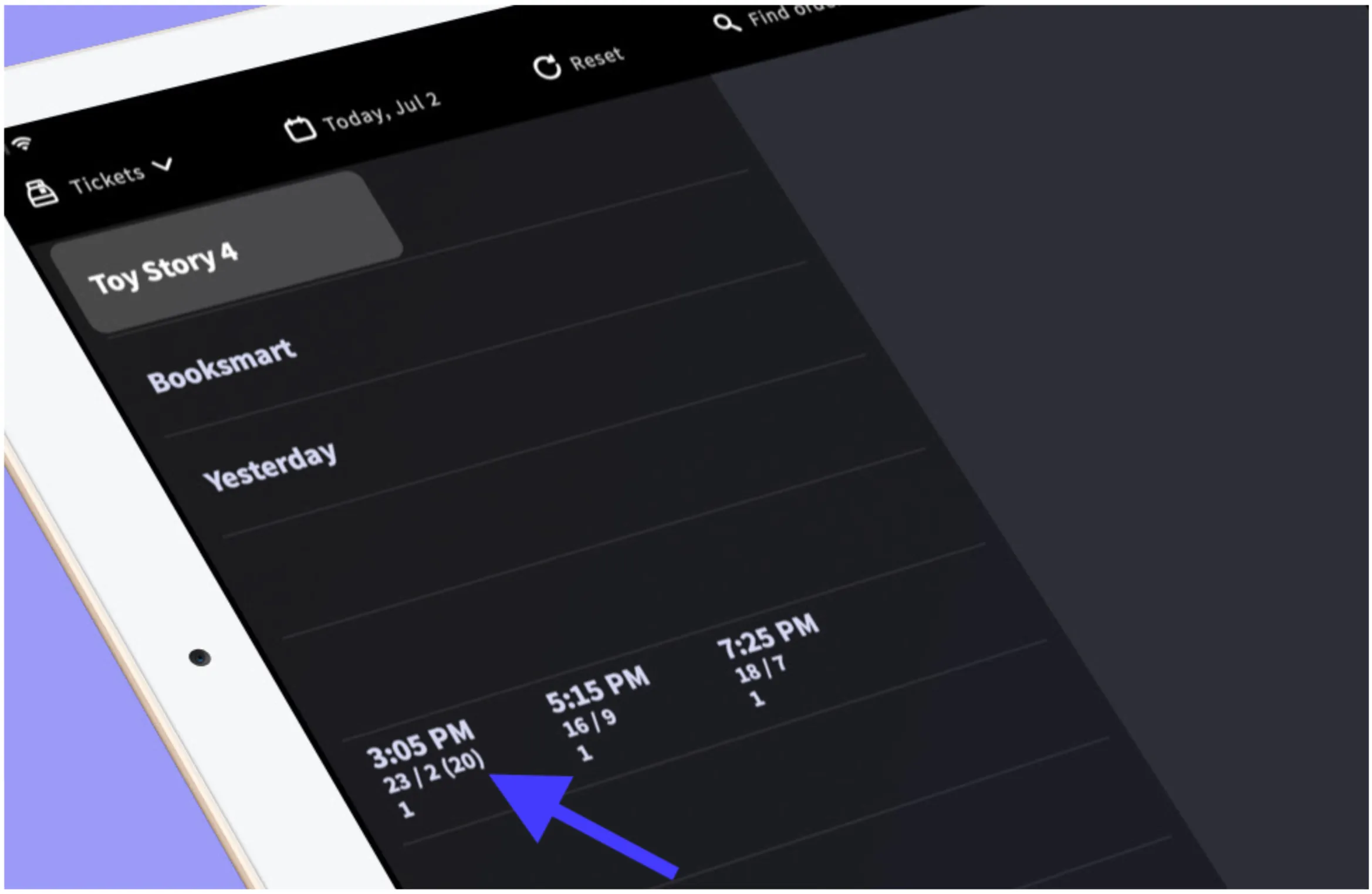
The Box Office app will display how many tickets have been scanned for each showtime, listed in parentheses beside how many tickets have sold and how many are remaining: