Selling Products with Stripe Checkout
While Filmbot's built-in cart and checkout can be used for selling tickets, if you need to sell other types of items, you can integrate a separate Stripe Checkout button on your site using our [stripe_checkout] shortcode.
Step 1: Decide which Stripe account you'd like to use
If you'd like to use the same Stripe account that you use to sell tickets on your site, you can skip this step — our Stripe Checkout integration will use that account by default.
If you'd like these sales to come into a different Stripe account, you will need to get your public API key for that account and enter it into your settings. In the Sales settings, underneath the Connected Stripe Account button, there is a setting called "Stripe Checkout Publishable Key" where you can paste your API key.
Step 2: Enable Stripe Checkout in your Stripe settings
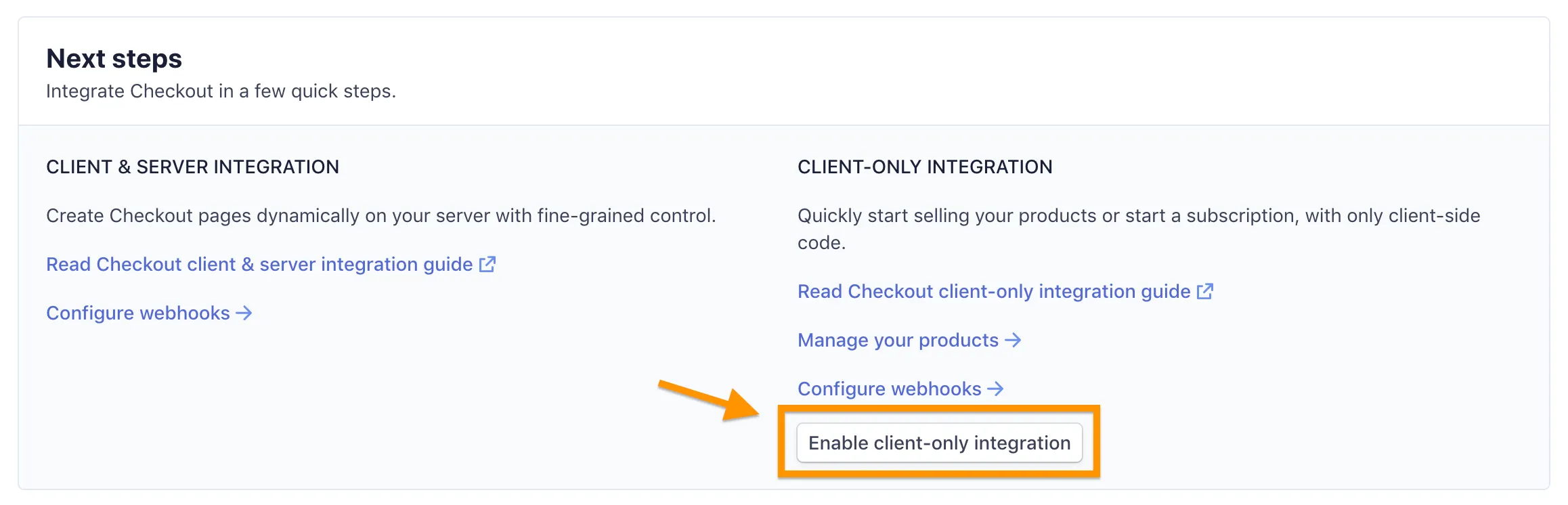
Next, you'll need to enable the Checkout client-only integration in your Stripe settings. Log into your Stripe Dashboard, then navigate to the Checkout Settings. Scroll down to Next Steps and click the "Enable client integration" button:
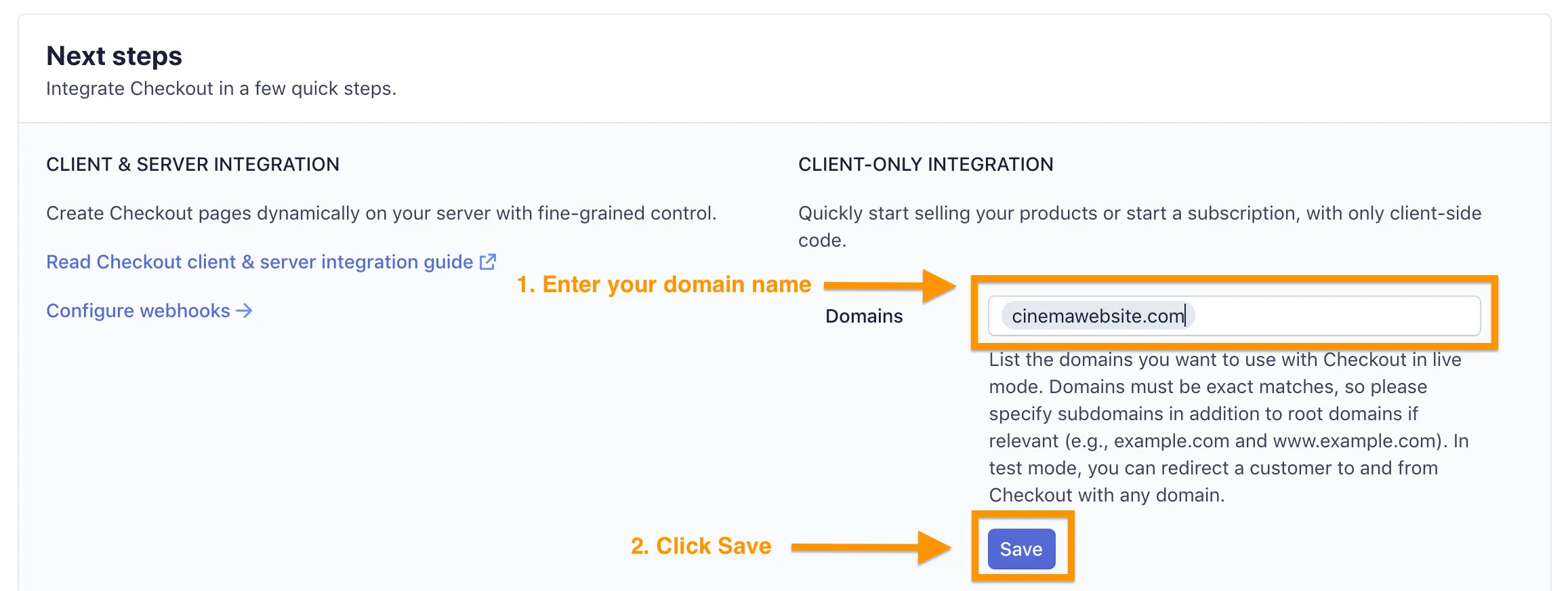
Once it's enabled, you will see a new field called Domains. You must add the domain name where you want to use Stripe Checkout. For example:
Step 3: Customize Branding Settings
Once you've enabled the client integration and added your domains, visit the Branding Setttings to access design customization options, including things like adding your logo and customizing the emails that customers receive.
We also recommend enabling receipts in your Stripe account settings. Your customers will get an email receipt for these purchases (they will not get a Stripe receipt for ticket purchases made through your Filmbot site, only the Stripe Checkout product purchases).
Step 4: Create a Product and a Price in Stripe
In Stripe, Products are the things being offered by your business for sale, while Prices describe how those things are to be paid for. Products can have multiple Prices—for example, you could create a t-shirt Product, then add a different Price for each size of the t-shirt. To create Products, head to your Stripe Dashboard and find the Products link in the sidebar. It will lead you to the Products page, where you can manage existing Products, or add new ones by clicking the blue "Add Product" button. Start by filling out the Product Information, then scroll down to the Pricing section. This is where you define your Prices.
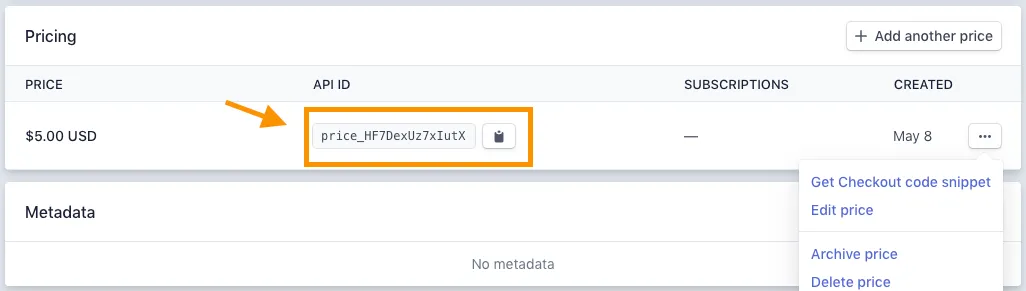
Once you have created the Product and Price, you'll need to copy the "API ID" of the price from the Pricing section of the Product editor. See this image for reference:
Step 5: Create two pages in your Filmbot site
Next, head over to your Filmbot site and create 2 pages:
- Success page - This page should thank the customer for their purchase and include any instructions they may need for delivery or pickup. You will need the URL to this page for the next step below.
- Sales page - Create a page where you will sell the items. You can describe the item in the page content, and then enter a shortcode which will embed your Stripe checkout button. The shortcode is formatted like this: [stripe_checkout price_id="your price API ID" success_url="success page url"] The shortcode above should be entered into your page editor, on a line by itself, as plain text with no formatting.
Step 6: Shortcode Attributes (optional)
The basics of using the [stripe_checkout] shortcode are described above, but there are other attributes you can use to get the most out of Stripe Checkout. Selling Subscriptions
If you want to use a Price that is a subscription, you must add subscription="true" to your shortcode, like this:
[stripe_checkout price_id="your price API ID" success_url="success page url" subscription="true"]
Custom Button Labels
The default text of the Stripe Checkout button is "Buy Now". To change this, use the label attribute. In the following example, the Stripe Checkout button will say "Subscribe Now": [stripe_checkout price_id="your price API ID" success_url="success page url" subscription="true" label="Subscribe Now"]
Selling Multiple Items of One Price
By default, when a customer purchases something through Stripe Checkout only one item is sold. If you want to allow people to purchase several of the same Product, use the max_qty attribute. For example, if you wanted to let people buy up to 8 coffee mugs at once, you would specify max_qty="8" like in the following example: [stripe_checkout price_id="coffee mug price API ID" success_url="success page url" max_qty="8"]
Collecting Billing Addresses for Every Purchase
A billing address is not always collected in Stripe, based on the details of the Product. If you want to always collect customer billing addresses for every purchase of a Product, then add collect_billing_addresses="required" to your shortcode like in the following example: [stripe_checkout price_id="price API ID" success_url="success page url" label="Purchase" max_qty="5" collect_billing_addresses="required"] Note that the billing address will need to match the address associated with the provided credit card, and may not be the correct one to use as a mailing address. If you need to collect mailing addresses, you may want to link to a google form in your success page where people can provide their mailing address.