Set up printers
The Box Office app communicates with your Filmbot-compatible printer over your local network. To use a Filmbot-compatible printer, you would generally enter its IP address in the Box Office App Settings.
Configuring a Filmbot printer via wired Ethernet
It's generally possible to simply connect your Filmbot printer to a router or switch via a wired Ethernet connection, and it will automatically configure itself with an IP address when turned on. You can print the IP address (along with other printer diagnostic information) by turning the printer off, then holding down the Feed button while turning the printer on. That IP address can then be added to the Box Office App settings.
Configuring a Filmbot printer via Wi-Fi
If you have an MCW10 wireless adapter for your Filmbot printer, you can configure the printer to work wirelessly over a Wi-Fi network.
First, download the Star Quick Setup Utility from either the Apple App Store for Apple devices or the Google Play Store for devices running Android. Then, make sure your phone is connected to the same wireless network that you'll be connecting the printer to (ie, a venue's Wi-Fi network). While the printer is disconnected from power, you'll need to connect the wireless adapter to your printer via both the included USB cable (instructions below), as well as via the included Ethernet (LAN) cable.
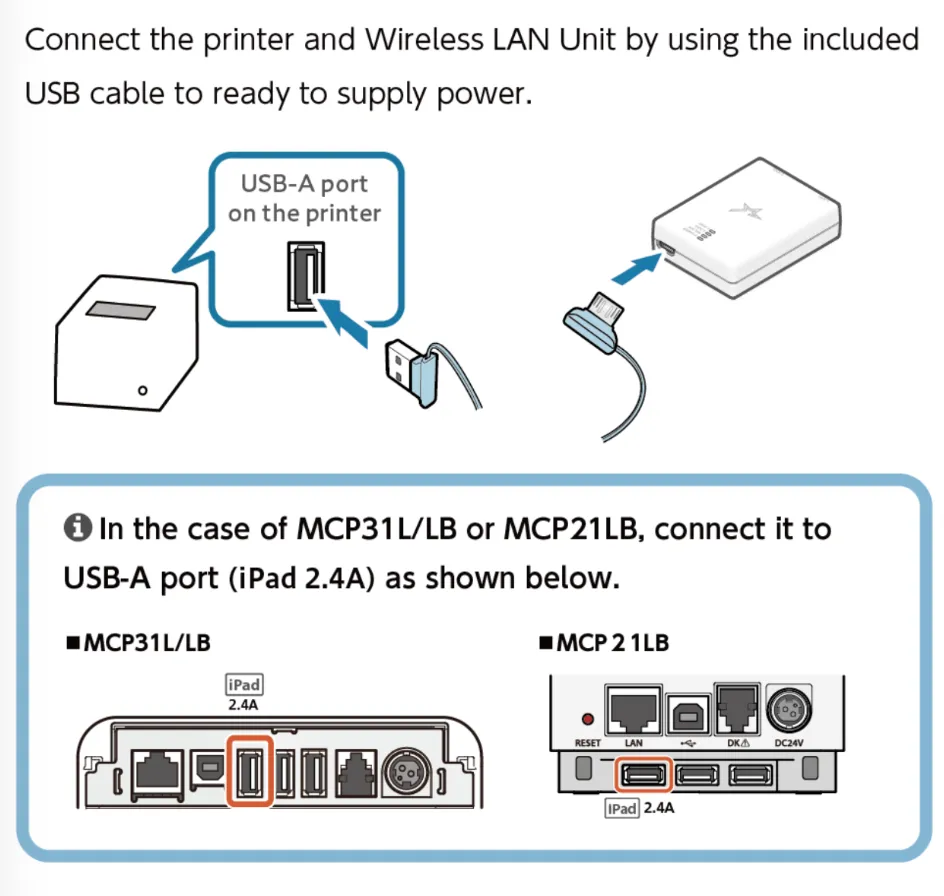
Once connected, attach the power cord to the printer and wait a few seconds for the printer to power up.
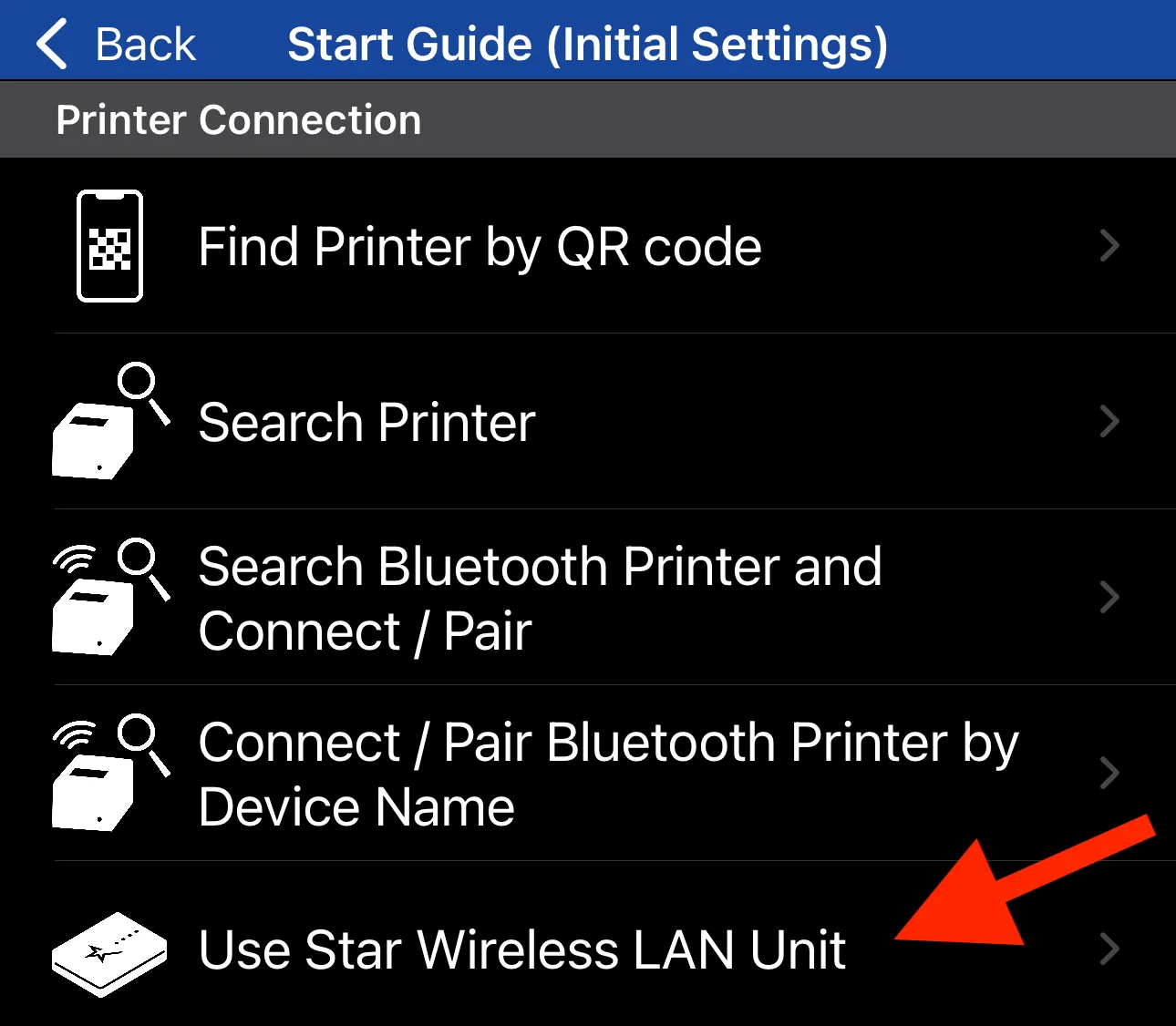
Once the printer is powered, load the Star Quick Setup Utility on your phone or tablet. Select Start Guide (Initial Settings) and then Use Wireless LAN Unit.
You'll then be prompted by the setup utility to ensure that the wireless module has been connected correctly, and finally, to enter Wireless LAN Setup to connect the printer to your venue's Wi-Fi.
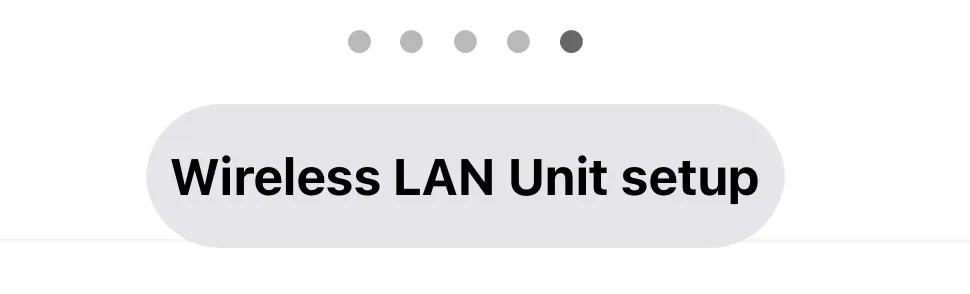
You'll then be able to enter the SSID (ie, wireless network name) and password for the Wi-Fi network at the venue, and the printer will connect.
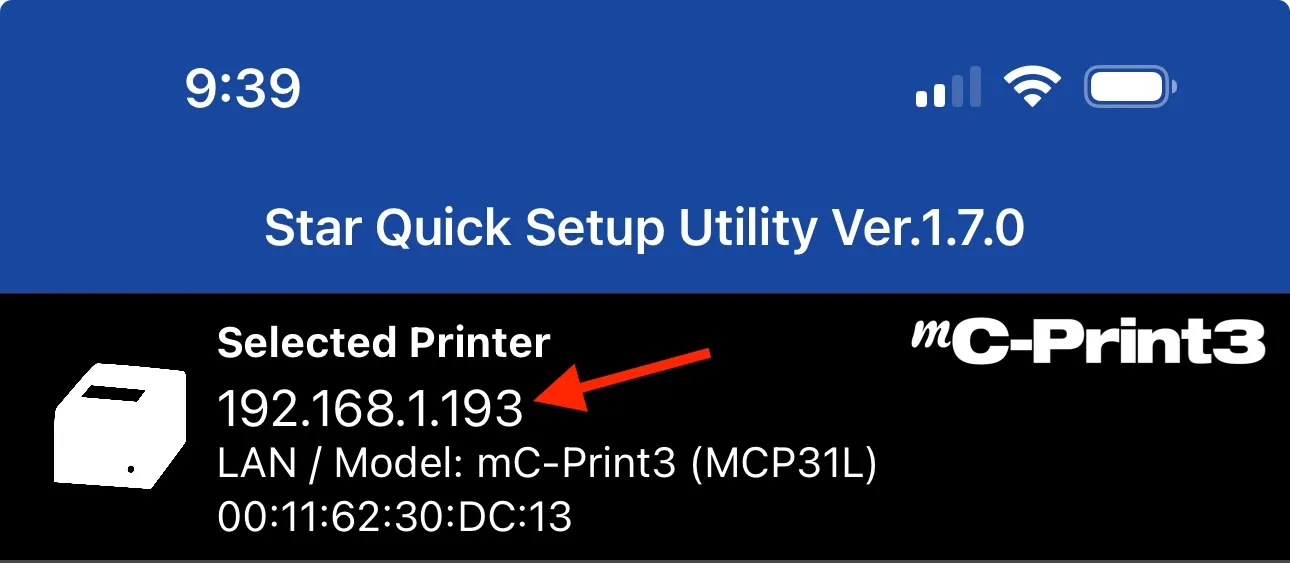
Once connected, the printer will found at the top of the main screen of the app, including the appropriate IP address. (If there are multiple printers, you can switch between them by tapping that area of the app.) That IP address can then be added to the Box Office App settings.
To ensure best performance, once the printer is connected and tested with the Box Office, you may want to update the printer firmware in the app to the latest revision. You can perform the update via Printer Settings > Firmware Update in the Star app.
Configuring a Filmbot printer for SSL (Browser Box Office only)
The following instructions enable your browser to communicate with your printer over a secure connection, which is required when using the browser-based version of the Filmbot Box Office App, usually used on a laptop. Note: setting a printer for SSL is not required when using the Box Office App on an iPad.
Test if your printer is working over SSL from your browser.
Switch off the printer. Switch on the printer, while holding the Feed button down, until your printer details are printed out. Take note of the IP address listed in the Current IP Parameters Status (at the bottom of the second sheet).
Open your web browser and enter https://xxx.xxx.xxx.xxx into the address bar and hit enter (replace the x's with your printer's IP). Ensure the address starts with https:// (not http://).
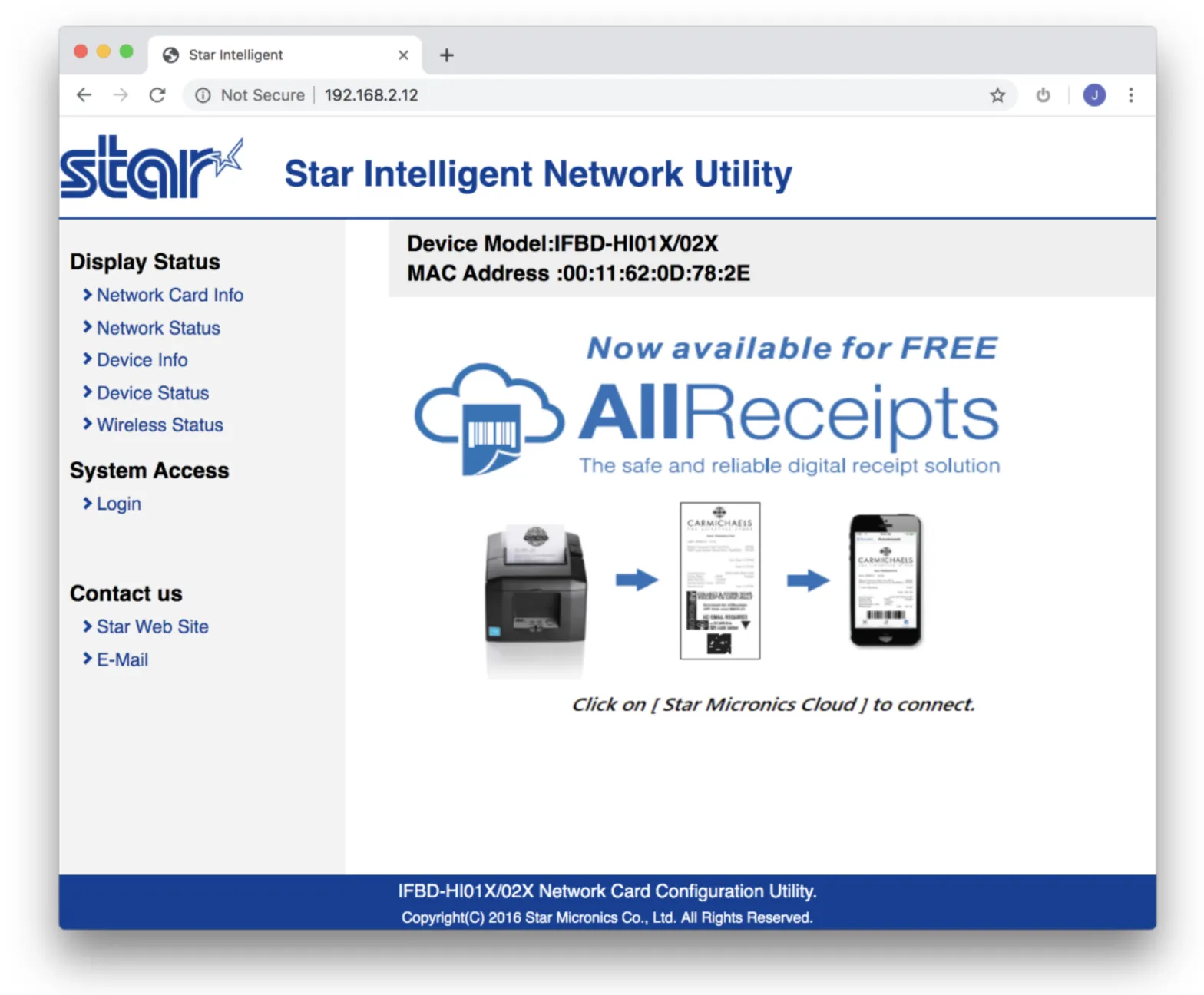
If your printer’s admin panel opens successfully and displays a lock in your address bar, you're all set and there's no need to continue with these instructions.
If your printer is not using SSL, you will get a warning page in your browser informing you that the resource is not secure. If this happens, follow these steps:
Open the printer admin panel in your web browser.
Note: the following instructions contain screenshots from the latest version of the Star Micronics Network Utility. If you are using an older Star Micronics printer, your screens may vary. Menu items generally remain the same.
Open your web browser, and type http://xxx.xxx.xxx.xxx (replace x's with your printer's IP address) into the url field (ensure it does not start with https://).
Select Login from the left menu.
Enter the following credentials:
- User name: root
- Password: public
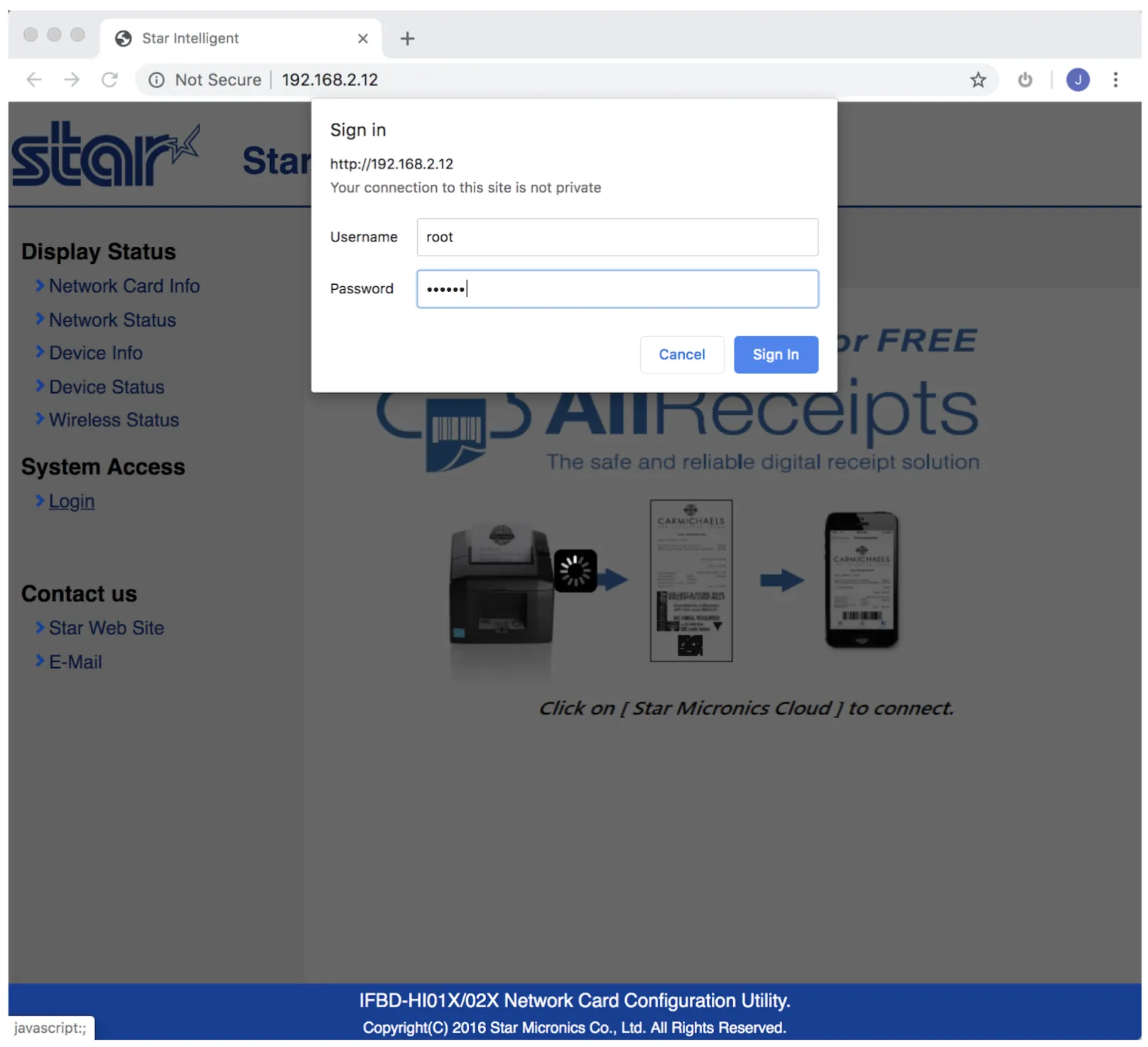
Create & install a self-signed certificate.
Once you have logged in, select SSL/TLS on the left. Select the option Create Self-Signed Certificate.
Enter in the available fields with your local information.
- Domain should match the IP address of the printer.
- Use your company name for Organization Name. You can put anything for Organization Unit (suggestion: "Box Office").
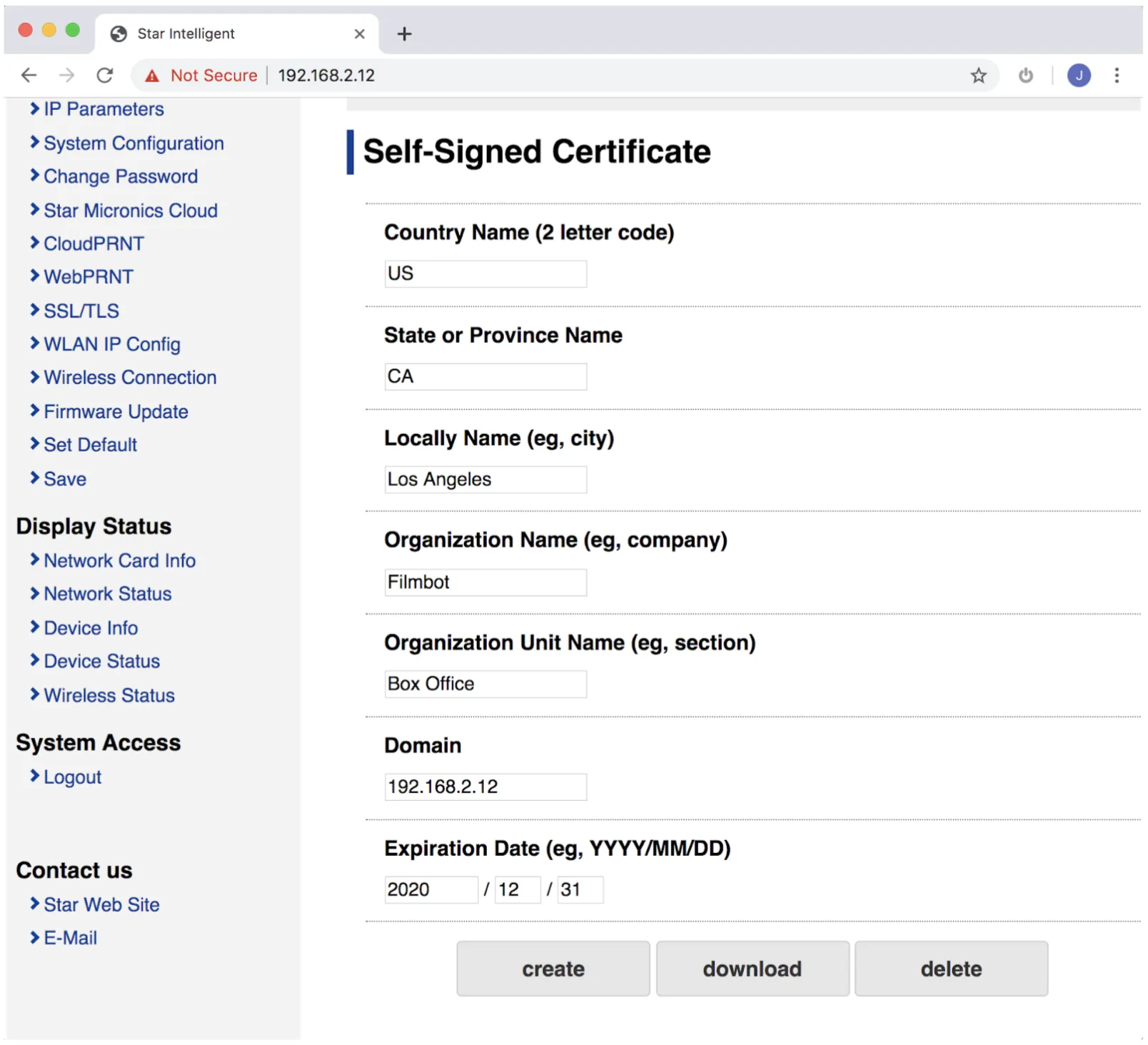
Click create. Select the option to go to Previous Page - the Certificate Form will appear blank. Click download.
For Mac computers:
Double-click the downloaded certificate and ensure that it opens with the Keychain Access app. If the certificate opens with another app besides Keychain Access, you will need to right-click the file, and choose Open With > Keychain Access.
Once it opens, set the Keychain to System and click Add.
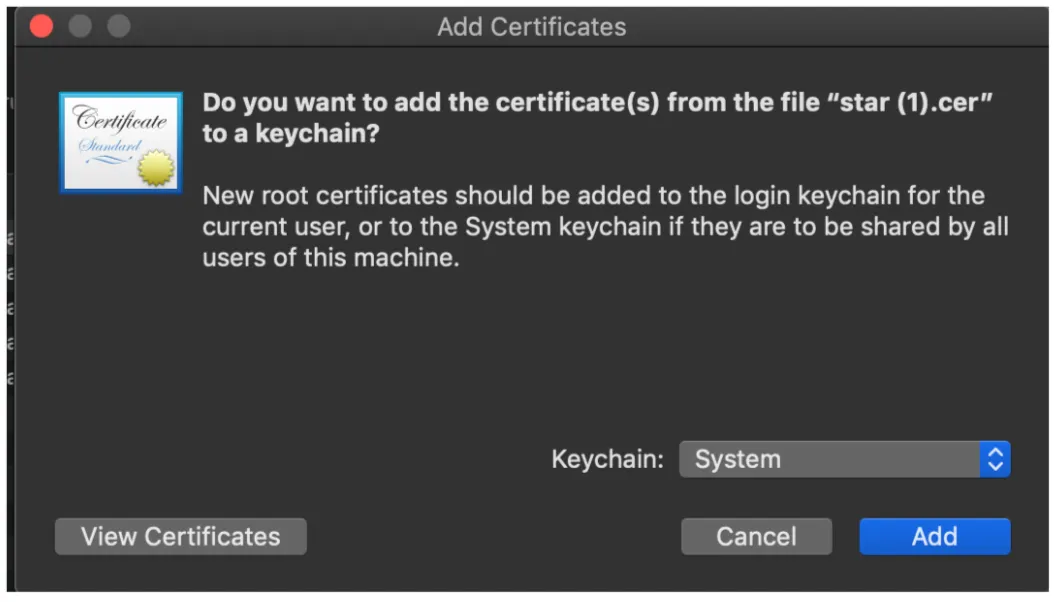
Find the certificate in Certificates and double-click on it. Expand the "Trust" section, and set “When using this certificate” to Always Trust.
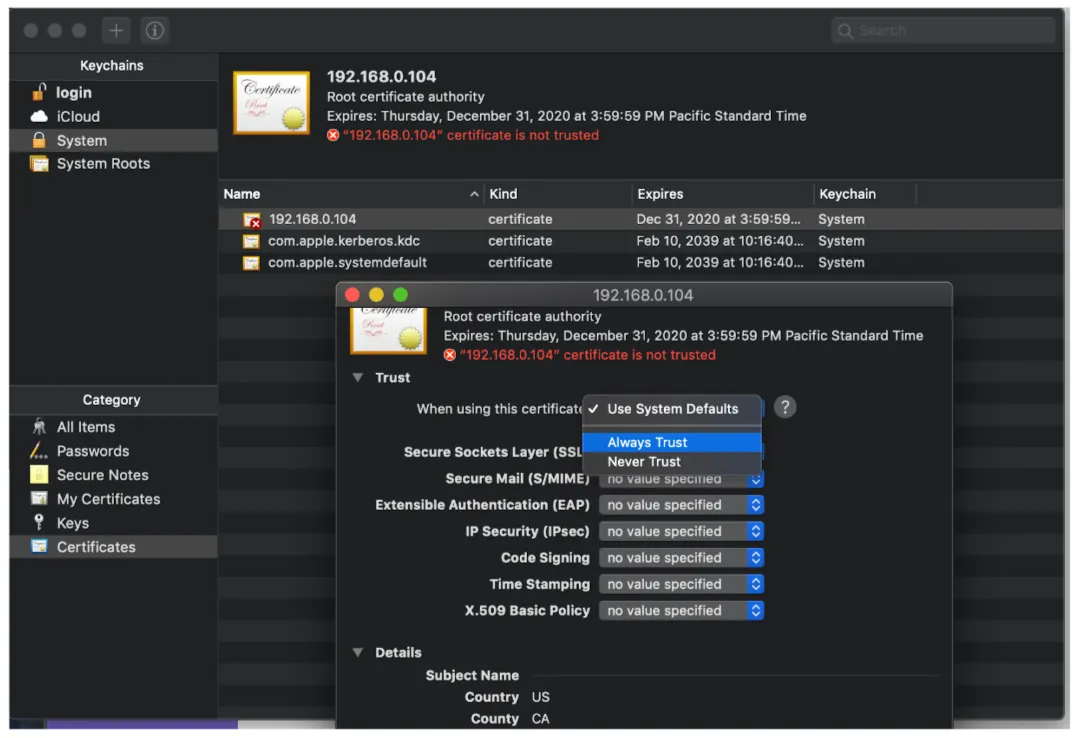
Close the window, enter your Mac user password, and then "Update Settings".
For Windows:
If your browser does not automatically open the downloaded certificate, open it from your download section.
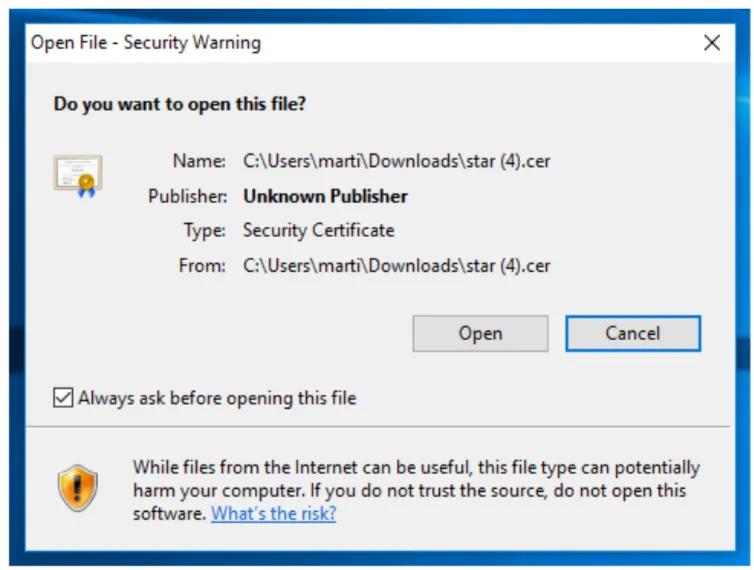
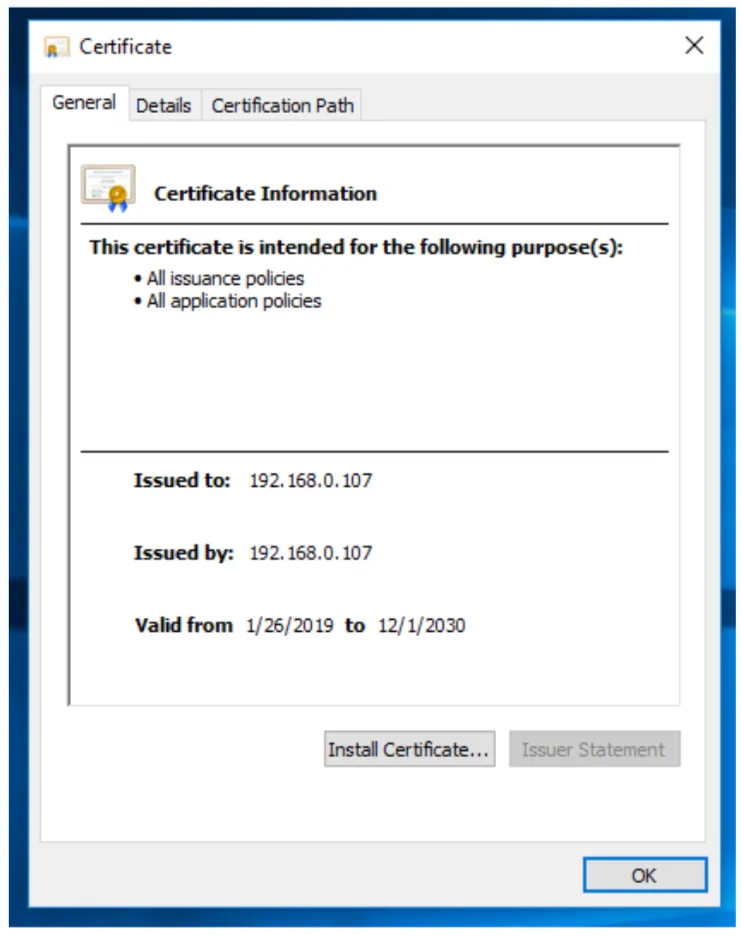
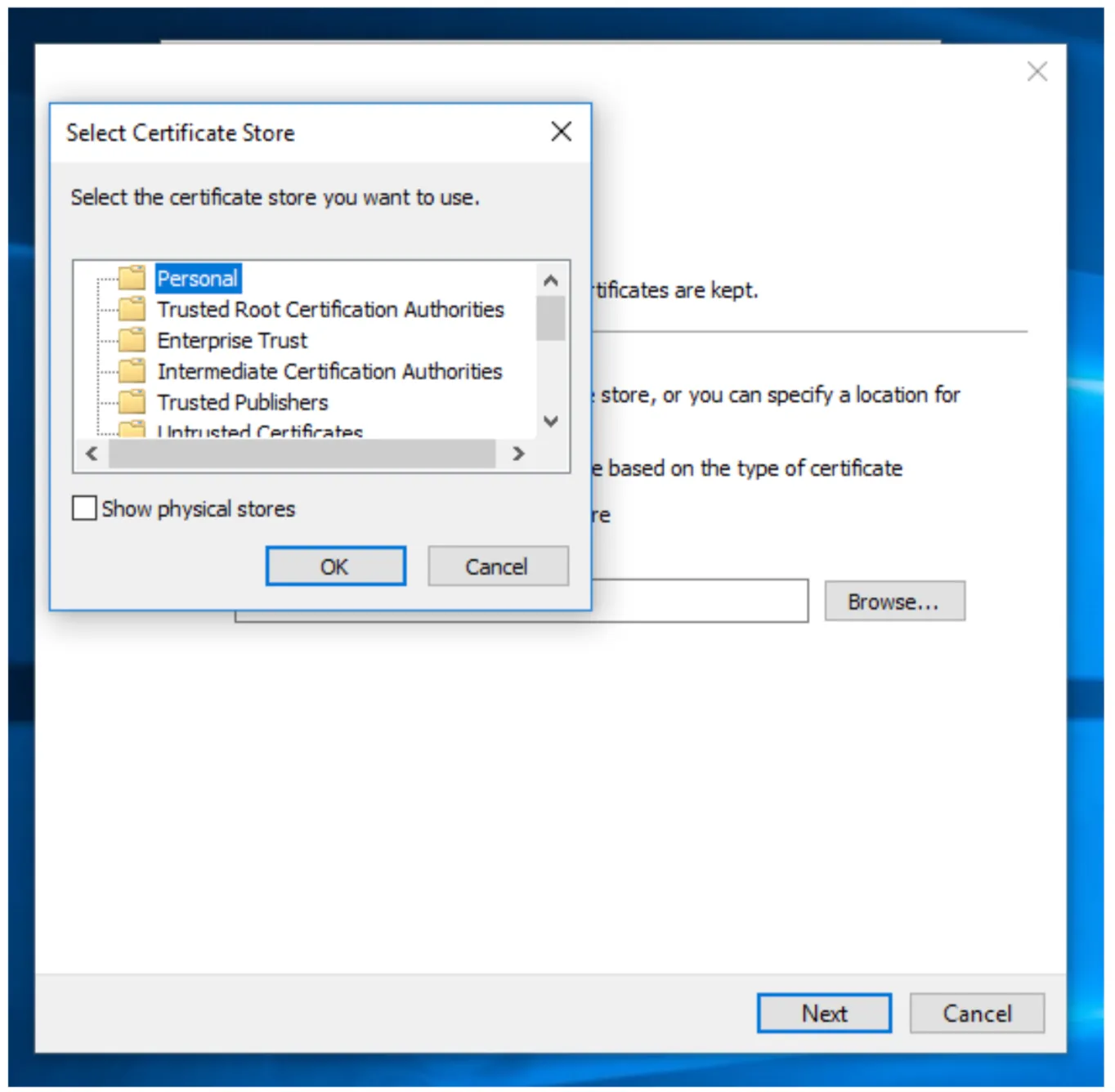
lick Install Certificate. Follow the on-screen instructions for your device for Windows, installing for the local machine.
Place the certificate in Trusted Route certification Authorities.
urn on the option to use SSL.
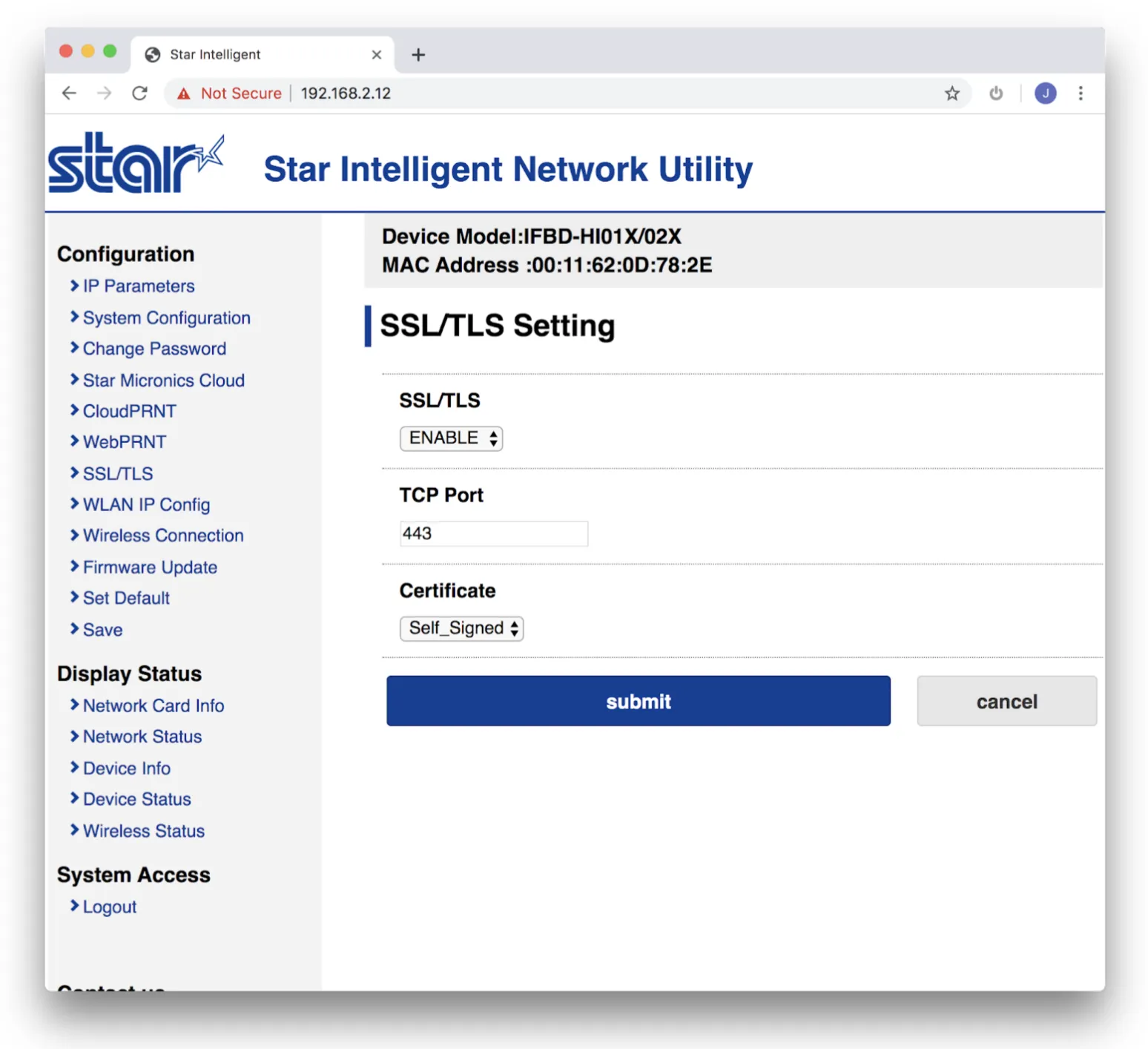
Return to the printer admin panel in your web browser. Select SSL/TLS on the left. Choose SSL/TLS Settings.
Set SSL/TLS to ENABLE and Certificate to Self_Signed. Click submit.
Click Save on the left menu, and choose Save -> Restart Device. Click execute. The printer will restart.
Test to ensure your printer is now using SSL.
Once the light on the printer is solid, open your web browser and enter your printer’s IP into the address bar and hit enter according to the following format: https://xxx.xxx.xxx.xxx. If your printer’s admin panel opens successfully, and you see a lock icon in the address bar you are all set!
Troubleshooting
The Box Office app communicates with the printer over the local network. When it's time to print, the app sends a simple http request to the printer's IP address (entered in the app settings). When you first log into the app, and when you press Reset (in the top bar), the app will send a message to the printer to check if it's online. If it can't communicate, an error message will appear after 60s, and print functions will not be available. Once you fix any printer connectivity issues, you can press the Reset button in the top bar of the app (or log out/in), and the app will check if the printer is there. If it connects, print functions will become available again.